Introduction

Stripe is a popular payment processing platform that allows businesses to accept secure online payments.


  • Accept credit and debit card payments from your customers
  • Receive payouts directly to your bank account
  • Manage your transaction history, and issue refunds through Stripe's dashboard
  • Invoices will automatically be updated to Paid status when payment is received
  • Customer facing receipts are always available for paid invoices
  • Invoices will prevent accidental double-payment

Getting Started

On the Doggy Logs website, go to Settings and then click on the Invoices tab. Choose Setup Payments to begin creating your Stripe account connection. You don't need to finish the setup right away - you can come back to it later if needed.


Invoices & Credit Card Settings

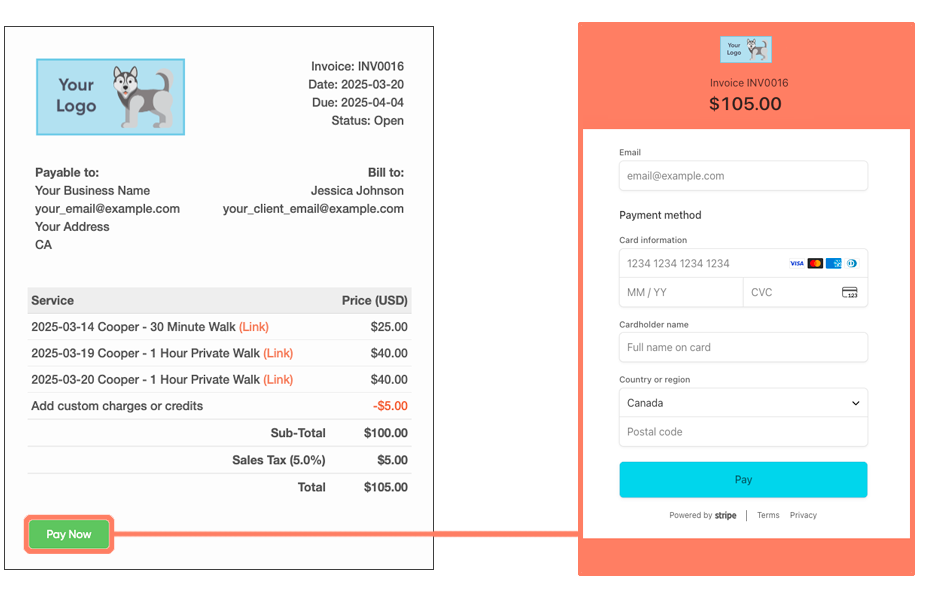
Once you've completed the setup, your invoices will include a Pay Now button that your clients can use to pay their invoices online using a credit card.

When a client pays an invoice, the payment will be processed through Stripe, and the invoice will be marked as paid in Doggy Logs.

You can turn credit card payments on or off at any time in the Invoice settings.

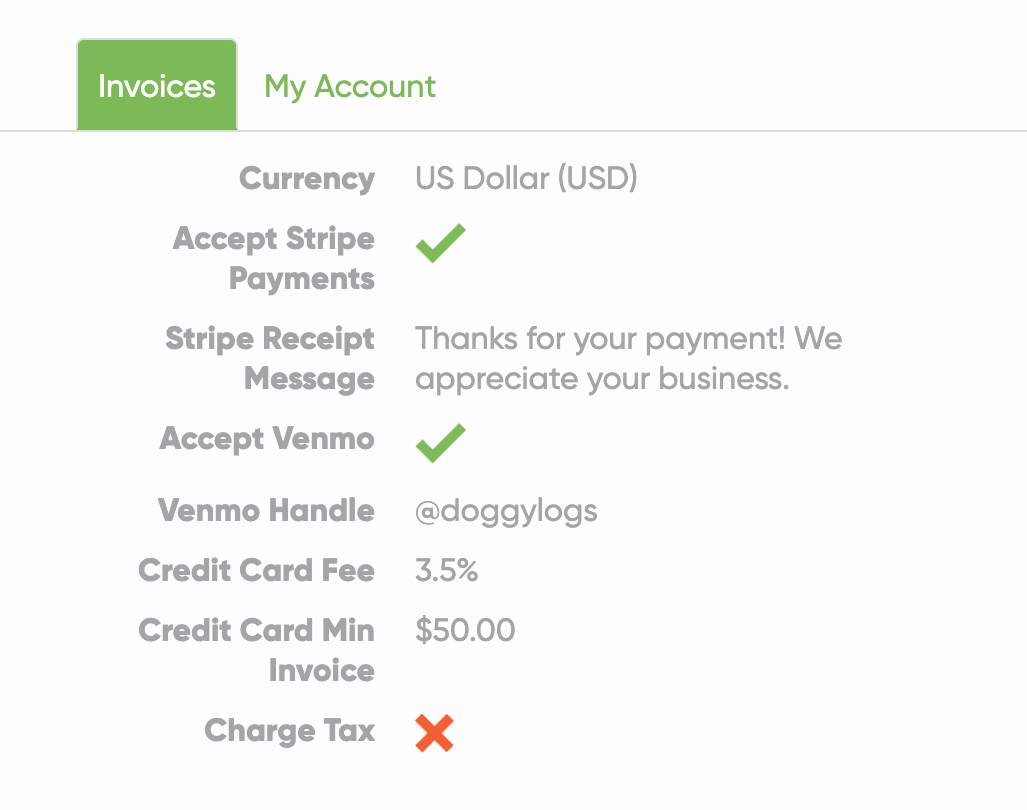
When Stripe or Venmo payments are enabled, two optional settings become available in the Invoice settings:

  • Credit Card Fee: An extra percentage fee charged to your clients when an invoice is paid by Stripe or Venmo. This can help offset the payment processing fees. If you use this setting, make sure to offer an alternative payment method in your payment instructions (e.g. cash, check, or bank transfer) so clients have a fee-free option.
  • Credit Card Min Invoice: The minimum invoice amount required before a client can pay by credit card (including tax).

Payments Dashboard

Once you've signed up for Stripe, you will have access to a custom Stripe dashboard. There, you can view all your payments, manage refunds, and see detailed financial reports. You can also update your bank account information and view your payout schedule.

Tip: You can customize the logo, icon and color scheme of your credit card payment page and receipts on the Stripe Dashboard.

Go to: Settings -> Business -> Branding -> Checkout & Payment Links

If you're having trouble using the new dashboard, or making your logos look right, please Contact Us, we're happy to help!


Fees

Stripe charges standard payment processing fees, which vary by country and payment method. Fees are deducted automatically by Stripe before payouts to your bank account.

You'll see your exact pricing during Stripe's onboarding process. Up to date pricing information can also be found on the Stripe pricing page.

Typical pricing is 2.9% + 30ยข per successful card charge, but may vary based on your country and currency. Please check the Stripe pricing page for details.

In addition to the Stripe fee, Doggy Logs charges a 0.5% application fee per transaction.

For example, on a $100 invoice payment, Stripe would deduct $2.90 + $0.30 = $3.20 in fees, and Doggy Logs would deduct an additional $0.50 fee, leaving you with a net payout of $96.30 that will be deposited to your bank account.

You can easily recover these fees from your clients by adding a Credit Card Fee to your invoices, which you can add under Invoice Settings once payments have been set up.


Limitations

Stripe is not available in all countries. Please check the Stripe website to see if your country is supported.

Part of the Stripe setup process requires providing a website for your business. If you don't have a website yet, you can use your Doggy Logs booking page URL. Check the Schedule tab on the Settings page and make sure you have Allow Clients to Book Online enabled to allow access to your booking page.

Integrated payments are only available on paid Doggy Logs plans.